Apple’s Passwords app is free, built in and good at filling in logins in Safari. People move their passwords out of it for a few reasons: they want a file they own instead of a copy in iCloud, they share a household with Android or Windows, or they want somewhere to keep things Apple Passwords has no place for, like licence keys, recovery codes and Wi-Fi passwords. A KeePass vault is the most common destination, because the format is open and many apps read it.
This guide covers the whole move: exporting on a Mac or an iPhone, what is in the file, importing it, checking that nothing was lost, and getting rid of the plain copy afterwards. It works for KeePassXC, Lockwell or any other KeePass app that imports CSV.
Apple’s menus below were checked on macOS 26 and iOS 26 in November 2026.
Before you start
- Pick a quiet moment. The export is a plain text file holding every password you have, readable by anything on your Mac until you delete it. Do the whole move in one sitting.
- Do not export to a synced folder. Save the file to your Desktop or Downloads, not to iCloud Drive, Dropbox or a shared folder, so no copy leaves the Mac.
- Have your KeePass app ready with a vault created and unlocked, so the file lives for minutes, not days.
Export from the Passwords app on a Mac
- Open the Passwords app (macOS 15 or later; on older macOS, use Safari, Settings, Passwords instead).
- Choose File, Export All Passwords to File.
- Confirm with Touch ID or your Mac’s password.
- Save the file. It is called Passwords.csv by default.
macOS 26 also has File, Export to App, which hands your passwords straight to another app through Apple’s new Credential Exchange standard, with no plain file in between. It only works with apps that support that standard. KeePass apps do not appear to, as of November 2026, so the CSV route is the one to use here.
Export from an iPhone or iPad
On iOS 18.2 and later, open Settings, Apps, Safari, tap Export under History and Website Data, leave only Passwords selected and save to Downloads. The CSV lands in the Files app, and you can AirDrop it to your Mac. Exporting on the Mac is simpler when you have one, because the file never has to travel between devices.
What is in the file
Apple’s CSV has six columns:
| Column | What it holds | Where it goes in KeePass |
|---|---|---|
| Title | The name you see, often the website | Title |
| URL | The website address | URL |
| Username | Your username or email | UserName |
| Password | The password, in plain text | Password |
| Notes | Any notes you added | Notes |
| OTPAuth | The secret behind a one-time code, if Passwords made your codes | One-time code (otp) |
The OTPAuth column is the one to watch. If Apple Passwords generates your two-factor codes, that column holds the secret behind each code. Map it to the one-time code field when you import, or your codes stay behind and you have to set up two-factor again for every site.
What does not come across
- Passkeys. They are not in the CSV. Keep them in Apple Passwords, or recreate them in an app that supports passkeys.
- Sharing. A KeePass file has no shared groups, so anything you share with family through Apple Passwords arrives as ordinary entries, and sharing stops there.
- Anything you were not sure was exported. If the Passwords app holds something you rely on, such as a Wi-Fi password, look it up in the CSV before deleting anything.
- Verification codes for sites set up elsewhere. Only codes Apple Passwords itself generated are in the OTPAuth column.
Import into KeePassXC
In KeePassXC, choose Database, Import, CSV File, create a new vault for it, and match the columns: KeePassXC shows a preview so you can set Title, Username, Password, URL and Notes. Recent versions also have a TOTP column for the OTPAuth values. KeePassXC creates a new vault from the CSV; merge it into an existing vault afterwards if you already have one.
Import into Lockwell
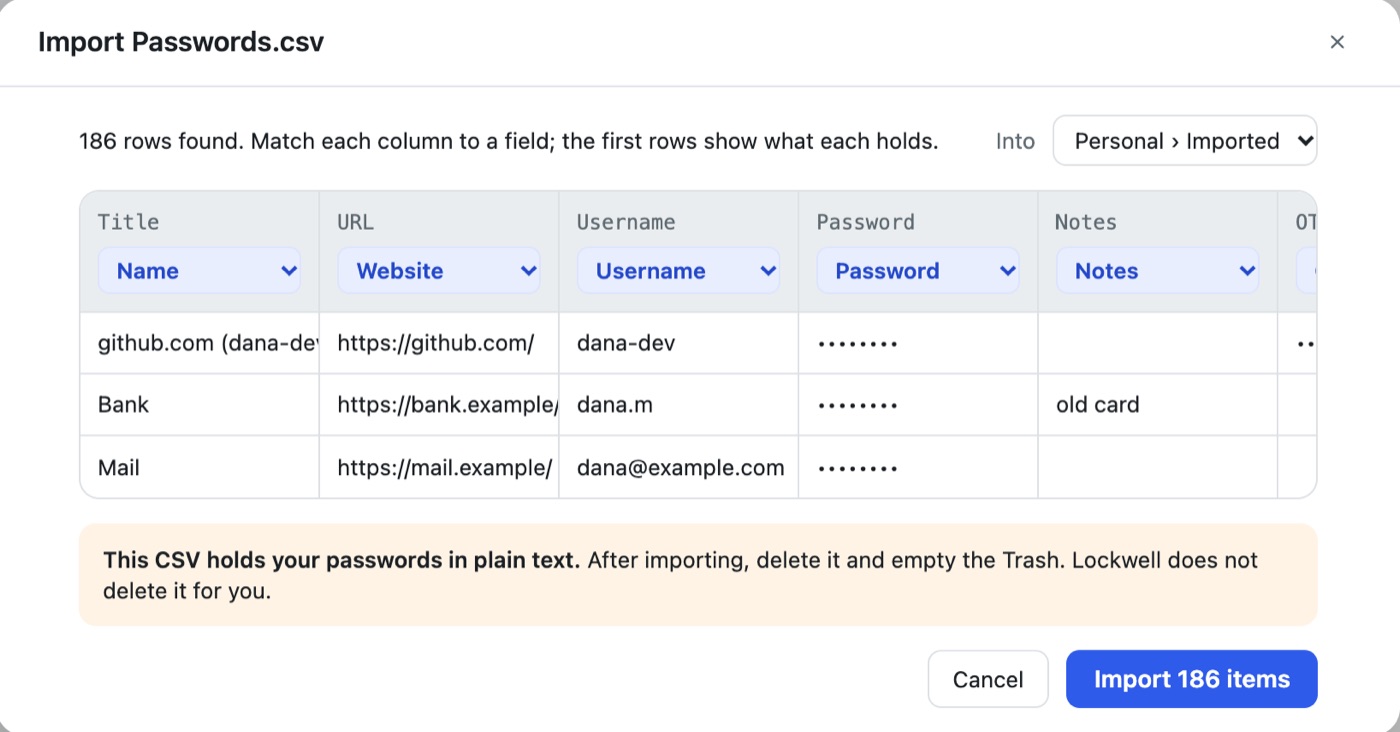
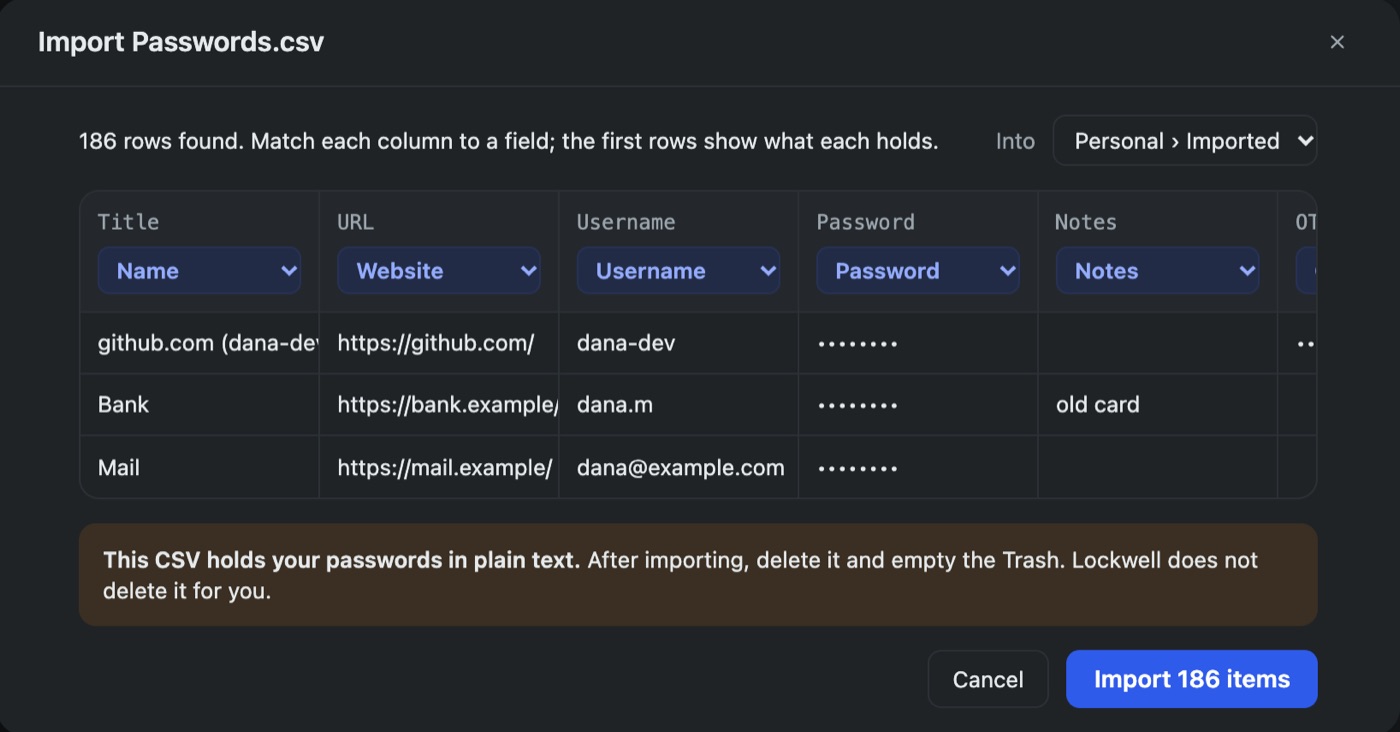
Choose New item, Import a CSV, or drop the file on the window. Lockwell reads Apple’s column names and matches all six on its own, including OTPAuth to the one-time code, shows the first rows so you can check each column, and lets you pick the vault and folder the items go into.
Check before you delete anything
- Count. The Passwords app shows how many passwords you have; the import says how many rows it read. They should match, give or take shared entries.
- Open three logins at random, including one with a one-time code, and check the username, the password and that the code changes every 30 seconds.
- Check a site you log in to daily before the end of the day.
Keep Apple Passwords as it is for a week or two. There is no rush to delete anything there.
Delete the CSV properly
Move Passwords.csv to the Trash and empty it. If you AirDropped it from an iPhone, delete it from the iPhone’s Files app too, and check Recently Deleted. If Time Machine ran while the file existed, that backup holds a copy; it is encrypted if your Time Machine disk is, and it ages out as backups rotate.
Questions
Can I export Apple Passwords without a CSV file? Only to an app that supports Apple’s Credential Exchange, through File, Export to App on macOS 26. KeePass apps need the CSV.
Will my one-time codes still work? Yes, if you map the OTPAuth column to the one-time code field. The codes depend on the secret, not on the app showing them.
Can I keep using Apple Passwords for autofill? Yes. Some people keep Apple Passwords for logging in on the iPhone and a KeePass vault as the copy they own. Just remember that a change in one is not copied to the other.
More: moving from 1Password to KeePass, and the KeePass apps worth using on a Mac.