For the first few days after a macOS update, a Mac does extra work in the background: Spotlight rebuilds its index, Photos re-analyses your library, and other services catch up. That work runs the battery down faster, and it ends on its own. If the drain started with the update and is only a few days old, the first thing to try is waiting with the Mac plugged in.
If it keeps going after that, something is using the energy, and it can be found. Checked on macOS 26.4.
What people are reporting
Apple Community has long threads from MacBook Air, MacBook Pro and M-series owners who say the battery drains much faster since Tahoe: on 26.0, again on 26.1 and later, and in some reports as late as 26.3.1. Related searches show people asking about drain while the Mac sleeps too. We could not find an official Apple statement of a cause or a fix, so this guide treats the cause as unknown and shows you how to test your own Mac. Most of what you read about “Tahoe battery bugs” is the same few user reports repeated.
1. Give the update a few days
Look in Activity Monitor (in Applications, Utilities). Processes called mds_stores, mdworker or corespotlightd working hard mean Spotlight is still indexing. Photos analysis and iCloud sync do the same after a big change. Users in those threads describe the drain fading over three to four days once indexing finished. Plug the Mac in overnight and see. The details of the Spotlight side are in Spotlight not finding files and Why is my Mac slow all of a sudden.
2. Find what is using the energy
Three places show it, from quick to detailed.
- The battery menu. Click the battery icon in the menu bar. Apple’s battery guide says it lists apps using significant energy, and advises closing one you are not using, especially on battery.
- Activity Monitor, Energy tab. Click Energy Impact to sort. On a laptop the 12 hr Power column covers the last twelve hours, which is the only look back it offers.
- System Settings, Battery. The usage history there compares the last 24 hours with the last 10 days, so you can see when the drain started and whether it lines up with the update.
3. The usual suspects
These are the names that came up most in the reports, and what each one usually means.
| You see | What it usually means | What to try |
|---|---|---|
| Browser Helper (Renderer) or a similar helper at the top | One tab or extension is working hard; the helper hides the browser’s name | Close tabs one by one, or quit the browser and reopen it |
| WindowServer high | The display system is busy: many windows, an external monitor, animation | Quit apps you are not using, try without the monitor, restart |
| duetexpertd very high | One user traced a drain to it at 80 to 150 percent CPU; the cause is unknown | Restart, update macOS, and note whether it returns |
| mds_stores, mdworker, corespotlightd | Spotlight indexing | Wait, plugged in |
| An old app high in Energy Impact | The app may not be updated for Tahoe | Update it, or quit it while on battery |
WindowServer and duetexpertd were reported by users in Apple Community threads. They are anecdotes, not confirmed by Apple. A single reading proves little: watch the same list for a while and see which name keeps coming back.
4. Settings that change the drain
- Low Power mode. In System Settings, Battery, turn it on while on battery as a test. One poster found that leaving it on “Automatic” seemed to keep the Mac in high power mode, and that switching to Low Power helped. Treat that as a result to try, not a rule.
- Screen brightness. On some MacBooks a brightness icon appears in the menu bar when the screen is using a lot of energy. Apple says clicking it lowers brightness to about 75 percent.
- The newest macOS 26 update. Several users said 26.1 improved things for them. Others said the drain stayed on 26.1 and later. It is worth installing, and it is not a guarantee.
5. Is it the battery itself?
A battery that has lost a lot of its capacity drains fast on any version of macOS. In System Settings, Battery, check the battery’s health and maximum capacity. If the figure is low, or the Mac says the battery needs service, no software setting will fix it.
6. A clean test
If nothing above explains it, test with a second user account on the Mac: if the drain is the same, it is not one of your apps or login items. If it disappears, one of your own login items or background apps is the cause. After that, contact Apple Support with what you found. A drain that continues for weeks with no heavy app is a reason to book a battery check.
The problem with catching it
Activity Monitor shows the present, plus twelve hours of power on a laptop. A drain that happens at 3 a.m. while the lid is closed, or only on Tuesdays, is gone by the time you look.
How Telltale helps
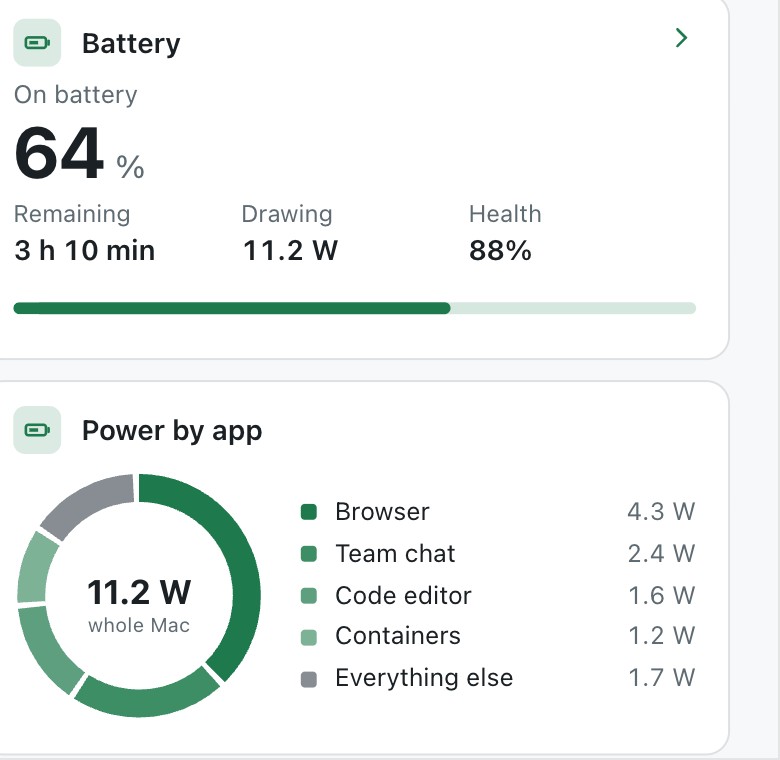
Telltale shows the battery level, the time remaining, the watts the Mac is drawing and the battery’s health, with a ring that splits the power by app. It counts every helper process under the app it belongs to, so a browser shows up as one browser and not as dozens of “Helper (Renderer)” rows. It keeps 30 days of history on your Mac, so you can open a moment from last night or last week and see which apps were busy then.
Questions
How long should battery drain last after a macOS update? Reports in the Apple Community threads suggest the extra indexing settles within three to four days. A drain that lasts longer than that is worth investigating.
Is the battery drain a Tahoe bug? Many users blame Tahoe, and Apple has not said. The reports are consistent enough to take seriously and too varied to name one cause, which is why testing your own Mac matters more than any list of fixes.
Does Low Power mode fix it? It lowers what the Mac does on battery, so the drain slows. It does not remove the cause, but turning it on is a useful test.
Why does my MacBook lose battery while closed? A closed MacBook can still wake briefly for background work such as backups and sync. If a lot is lost overnight, check which processes were busy then, which is the case a history tool answers and the present-tense Activity Monitor cannot.