The short answer: macOS can cover part of a screenshot with a box, but Preview’s Markup has no blur tool, so for a real blur you need another app. The more useful answer is that for anything private, such as an email address, a key, a token or a name, a solid box is safer than a blur. This guide shows both, and how to check the file you are about to share.
Blur is not the same as hidden
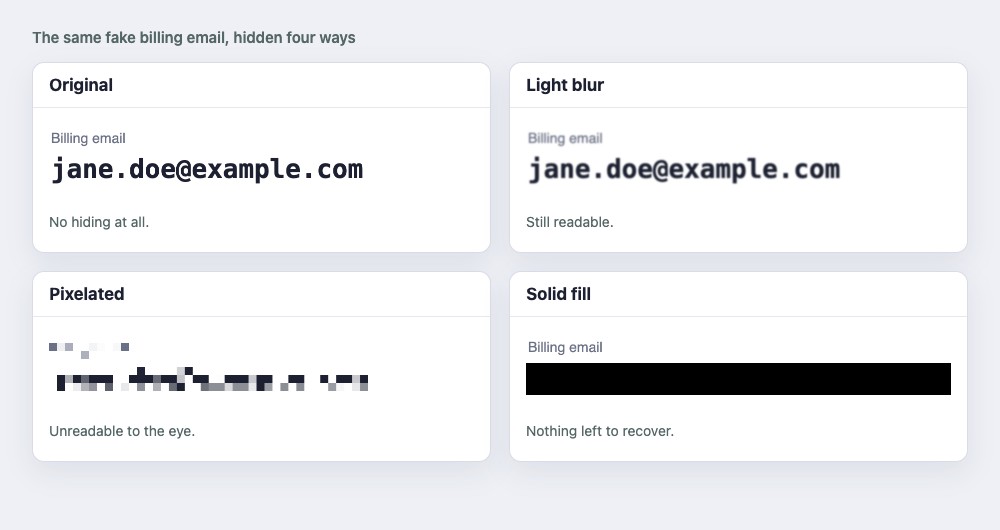
A light blur leaves text readable, as the second panel shows. A heavy blur or pixelation looks unreadable to the eye, but it keeps information about what was underneath. In 2022 the security firm Bishop Fox released a tool, Unredacter, that rebuilds text hidden by pixelation when the font is known, and researchers’ standing advice is to cover sensitive text with a solid bar. Blur is harder to undo than pixelation and less studied, which is a reason to treat it as unproven, not as safe.
A simple rule:
- Private data (emails, names, keys, tokens, card numbers, addresses): cover it with a solid box.
- Things that just distract (a busy background, a stranger’s face in a street photo): blur is fine.
1. Preview: a solid box, free
- Open the screenshot in Preview and click Show Markup Toolbar.
- Choose the Shapes tool and draw a rectangle over the text.
- In the shape’s style options, set a solid fill colour, black or any opaque colour.
- Choose File, Export and save a PNG. Share the exported file, not the original.
This hides the text well. It does not blur anything, because Preview cannot.
2. The screenshot thumbnail
After you press Command-Shift-5 or Command-Shift-4, the small thumbnail in the corner opens a Markup editor with the same kind of shapes. It is quick for one box, and you share the result from there. As with Preview, check that the saved file shows the box.
3. Snipkeep: blur and markup in one step
Snipkeep captures a region with Command-Shift-9 and puts a markup toolbar beside the selection: arrow, line, rectangle, pen, marker, text, blur and numbered steps. Its blur is applied to the pixels of the image you save or copy, not kept as a layer on top, so the original pixels are not stored in the file you send. That makes it a real blur, with the limit above: for a secret, cover it with a rectangle instead.
4. VeilShot: find the private parts for you
VeilShot is built for this one job. It reads the screenshot on your Mac and suggests the parts to hide, emails and faces, and nothing is hidden until you accept a suggestion. The default is Solid black, recommended. You can draw a box over anything else, such as a key or a name, and then export. The hidden areas are removed from the exported file, not left as a layer on top.
Check before you share
Whichever tool you use, look at the file you are about to send, not at the window you edited.
- Open the exported file and zoom in on the hidden area. Is it solid, or can you still make out letters?
- Look beyond the obvious. Window titles, tab names, a URL bar, a notification that slid in, a name in a sidebar, and the file name of the screenshot itself can all give the secret away.
- Try to select the text. In Preview, use the text selection tool over the hidden area. If Live Text can still pick up words there, the area is not really hidden.
- Share the export, not the working file. Keep the original private.
Questions
Can someone undo a blur on a screenshot? A light blur does not need undoing, because the text is still readable. A heavy blur is harder to read back, and researchers have shown that pixelated text can be rebuilt when the font is known. For anything private, use a solid fill and the question does not come up.
Does macOS have a built-in blur for screenshots? Not in Preview’s Markup or the screenshot thumbnail editor, which draw shapes but do not blur. Some Photos retouching tools smudge an area, but they are not made for hiding text.
Is a black box really safe? If it is part of the saved image, yes: the pixels underneath are gone. If it is a shape still sitting on top of the image as a separate layer, no, because someone might move it. That is why you export and check the result.
What about the name of the file? A screenshot is named by the time it was taken, so the name usually reveals nothing. Rename it if it does.