Yes, it is safe. ~/Library/Developer/Xcode/DerivedData holds build output: compiled
files, indexes, logs and intermediate products. None of it is your code, and Xcode recreates
everything it needs the next time you open or build a project. Deleting it costs you one slower
build per project, not data.
This guide covers what is inside, when deleting it is worth it, three ways to do it, and the other Xcode folders that grow just as large.
What DerivedData is
Every time Xcode builds a project, it writes the results somewhere other than your project
folder, so your source stays clean. That somewhere is DerivedData. Each project gets its own
folder inside it, named after the project plus a random-looking suffix, for example
MyApp-bxkqzfvhgmwtadfhtbtuyzthmdyk.
Inside each project folder you will typically find:
- Build: the compiled app, frameworks and intermediate object files.
- Index.noindex: the index behind code completion, jump to definition and search.
- Logs: build, test and run logs.
- SourcePackages: checkouts of the Swift packages the project depends on.
- ModuleCache.noindex (at the top level): precompiled modules shared between projects.
How big does it get?
It depends on how many projects you build and how big they are. A single app can use a few gigabytes; a Mac that has built many projects over a year or two often holds tens of gigabytes here. Folders for projects you deleted or stopped working on stay forever, because Xcode never removes them.
To see the size, open Finder, choose Go, Go to Folder, type
~/Library/Developer/Xcode/DerivedData and press Return. Then use File, Get Info on the
folder, or switch to list view and turn on View, Show View Options, Calculate all sizes to
size every project folder at once.
What you lose when you delete it
Time, not data:
- The next build of each project is a clean build. Large projects can take several minutes where an incremental build took seconds.
- Xcode re-indexes the project. For a few minutes after opening it, code completion and search are slower or incomplete.
- Swift packages download again on the next build, because their checkouts lived in
SourcePackages. That needs the network. - Old build logs are gone. If you need a log from a past build, copy it first.
Your source code, project settings, signing settings, schemes and Git history are all in your project folder, not in DerivedData. None of them are touched.
When it is worth deleting
- It has grown large and you need the space.
- A build fails in a way that makes no sense: “No such module”, stale Swift package errors, previews that will not refresh, or code completion that shows things you removed long ago. A fresh DerivedData fixes a surprising number of these.
- Projects you no longer work on. Their folders are pure waste. You can delete just those and keep the rest.
- After a major Xcode update, when old module caches no longer match the new compiler.
If you only want to fix one project, try Product, Clean Build Folder (Shift-Command-K) first. It clears that project’s build products without touching the index or other projects.
How to delete DerivedData
Quit Xcode first in every case. A running Xcode may be writing to the folder, and it will recreate parts of it while you delete.
In Finder
- In Finder, choose Go, Go to Folder and enter
~/Library/Developer/Xcode/DerivedData. - Select everything inside, or only the folders of projects you no longer need.
- Move them to the Trash, then empty it once your projects build again.
From Xcode’s settings
Open Xcode, Settings, Locations. Under Derived Data, the small arrow next to the path opens the folder in Finder, where you can delete it as above. This is also where you can move DerivedData to another place, such as an external drive, if your startup disk is small.
In Terminal
rm -rf ~/Library/Developer/Xcode/DerivedData/*This deletes immediately; nothing goes to the Trash. Type it exactly, because rm -rf with a
wrong path deletes whatever that path points to.
The other Xcode folders that grow
DerivedData is rarely the only large thing under ~/Library/Developer. Here is what else is
there, and what deleting each costs.
| Folder | What it holds | Safe to delete? |
|---|---|---|
Xcode/DerivedData | Build output and indexes | Yes. Rebuilt on the next build |
Xcode/iOS DeviceSupport (also watchOS, tvOS) | Debug symbols copied from each device and OS version you connected | Yes for old OS versions. Copied again the next time that device connects |
Xcode/Archives | Every build you archived for TestFlight or the App Store, with its debug symbols | Keep the ones you shipped. Their symbols turn crash reports into readable stack traces |
CoreSimulator/Devices | Every simulator you created, with its apps and data | Old ones, yes. Use the command below rather than Finder |
CoreSimulator/Caches | Caches for simulators | Yes. Rebuilt when needed |
| Simulator runtimes | Whole iOS, watchOS and visionOS versions for the simulator, often several GB each | Old ones, yes. Remove them in Xcode’s settings |
Simulators
Simulators for iOS versions you no longer have installed stay behind as “unavailable”. This command removes only those:
xcrun simctl delete unavailableTo remove a whole simulator runtime, open Xcode, Settings, Components (called Platforms in Xcode 15), select an old runtime and remove it.
Swift package and other developer caches
~/Library/Caches/org.swift.swiftpm holds downloaded Swift packages shared between projects.
It is safe to clear; packages download again when needed. If you also use CocoaPods, Carthage,
Homebrew, npm or Docker, each keeps its own cache, and those can be even larger than Xcode’s.
How to keep it from growing back
- Delete the DerivedData folders of finished or abandoned projects every few months.
- Run
xcrun simctl delete unavailableafter each Xcode update. - Remove simulator runtimes for OS versions you no longer test against.
- If disk space is tight, move DerivedData to an external SSD in Settings, Locations.
Questions
Will deleting DerivedData delete my code? No. Your code and project files live in your project folder. DerivedData holds only what Xcode generated from them.
Will it break my Git repository? No. Git does not track DerivedData, and nothing in it belongs to your repository.
Do I need to delete it often? No. Delete it when it is large, when builds act strangely, or for projects you have finished. Deleting it every day only costs you build time.
Can I delete it while Xcode is open? Quit Xcode first. Deleting under a running Xcode can leave a half-written index and odd errors until you restart it.
How DiskAtlas and Kempt help
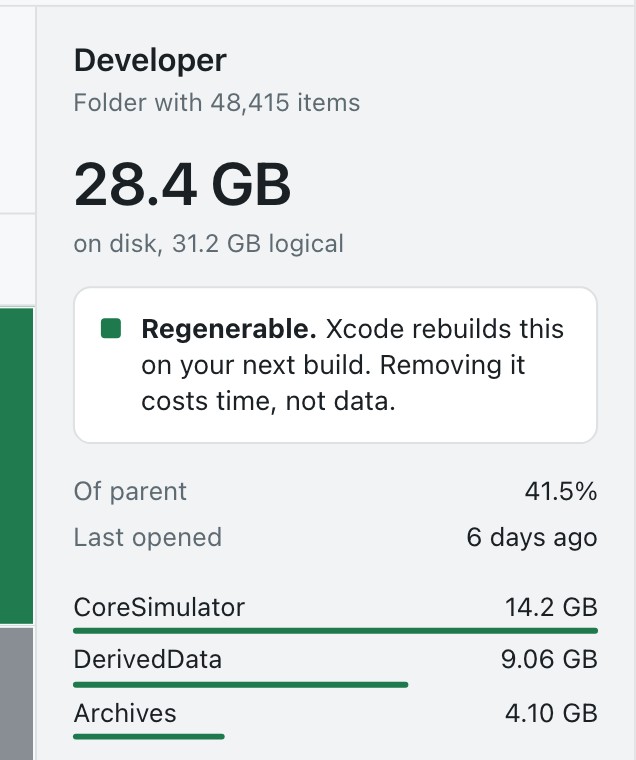
DiskAtlas shows how large DerivedData and every other folder under ~/Library/Developer are,
in one map, and labels each one: build output that rebuilds itself, downloads that come
back, or your own files. Kempt’s cleanup has a Developer category for Xcode’s build output and
caches, labels every item (Rebuilds itself, Downloads again, Look first or Yours), and moves
only what you tick to the Trash, so you can put anything back.
For the rest of the Mac, see what you can safely delete on a Mac and how to free up disk space.