Most advice on freeing space says “caches are usually safe” and “leave system files alone”,
and stops there. That is true, but it does not help when you are looking at a folder called
Group Containers and wondering what breaks if it goes. This guide goes folder by folder and
gives each one a plain verdict.
The four verdicts
Everything on a Mac falls into one of four groups. Knowing which one a folder is in tells you what deleting it costs.
- Safe. Your own leftovers: old installers, downloads, exports, duplicates. Once gone, they are gone, but nothing depends on them.
- Safe, but it comes back. Caches and build output that apps recreate when they need them. Deleting them frees space for a while, then the space fills again as you use the apps. Worth doing for apps you no longer use, much less so for apps you open every day.
- Ask first. Data an app needs to keep working: settings, libraries, databases, mail. Deleting it can reset or break the app. Only remove it for apps you have already uninstalled.
- Never. Anything macOS manages itself. Removing it can stop updates, apps or the Mac from starting.
Start with what is big
Open System Settings, General, Storage. The bar at the top shows the broad categories, and the list below it has a Recommendations section and an info button for each category. It is a good overview, but it will not tell you which folder inside “System Data” or “Developer” is the large one. For that you need a tool that sizes every folder, such as DiskAtlas, or Finder’s list view with View, Show View Options, Calculate all sizes, one folder at a time. Our guide to freeing up disk space covers the order to look in.
Folder by folder
To reach your Library folder, open Finder, choose Go, Go to Folder and type ~/Library.
The ~ means your home folder; /Library without it is the shared one for all users.
| Folder | What it is | Verdict |
|---|---|---|
~/Downloads | Everything you downloaded, including installers (.dmg, .pkg, .zip) | Safe. Sort by size and keep what you still need |
~/.Trash | Your Trash | Safe. Empty it, or turn on emptying after 30 days in Storage settings |
~/Library/Caches | Caches apps keep to start and load faster | Safe, but it comes back. Quit the app first |
/Library/Caches | Shared caches for all users | Safe, but it comes back. Needs an administrator password |
~/Library/Application Support/<app> | An app’s settings, libraries and data | Ask first. Delete the folder of an app you removed; keep the rest |
~/Library/Containers/<app> | Sandboxed apps keep their data and caches here | Ask first. Same rule as Application Support |
~/Library/Group Containers | Data shared between related apps, for example an app and its extensions | Ask first. Often holds the real data of messaging and office apps |
~/Library/Developer | Xcode build output, simulators, device support files | Safe, but it comes back. See our DerivedData guide |
~/Library/Mail | Your local copy of every mail and attachment | Ask first. Reduce it from inside Mail, not in Finder |
~/Library/Messages | Message history and attachments | Ask first. Remove large attachments from inside Messages |
~/Library/Application Support/MobileSync/Backup | iPhone and iPad backups made on this Mac | Ask first. In Finder, select the device, then Manage Backups, to delete old ones |
~/Library/Logs | Logs and diagnostic reports | Safe, but it comes back. Usually small |
/System, /usr, /bin, /private/var | macOS itself | Never |
Macintosh HD - Data | Not a folder: the volume that holds your files | Never. It is where your data lives |
Is it safe to delete Library caches?
Yes, with two cautions. First, quit the app whose cache you are clearing, because an app that is running may be writing to it. Second, expect the space to come back: a cache exists because the app wants it, and it rebuilds as you use the app. The honest gain is the cache of apps you have stopped using, which nothing will refill.
Clearing every cache to “speed up” a Mac usually does the opposite for a while, because apps then have to rebuild them.
Can I delete Application Support?
Not the whole folder. It holds a folder per app, and for apps you still use those folders are their settings and data. What you can delete is the folder of an app you have already removed. Moving an app to the Trash leaves this folder behind, which is why uninstalled apps keep taking space. A tool that matches leftovers to removed apps, such as Kempt, saves you guessing which folder belongs to what.
What about System Data?
System Data is a label in the Storage panel, not one folder. It mixes caches, logs, local Time Machine snapshots, virtual machine disks and space macOS can free on its own. Our System Data guide explains each part and which ones you can reduce.
Time Machine local snapshots
If you use Time Machine, macOS keeps local snapshots so you can restore recent versions even
when the backup disk is not connected. macOS removes them itself when the disk needs room, so
you rarely need to. To see them, run tmutil listlocalsnapshots / in Terminal. Deleting one
removes that restore point permanently; it does not go to the Trash.
How to tell who owns a folder
Folder names inside Library usually follow the app’s identifier, such as com.example.App.
Search the name, check whether the app is still in /Applications, and look at when the
folder was last changed (Finder, Get Info). A folder for an app you removed months ago, not
changed since, is the safe kind of leftover.
How DiskAtlas and Kempt help
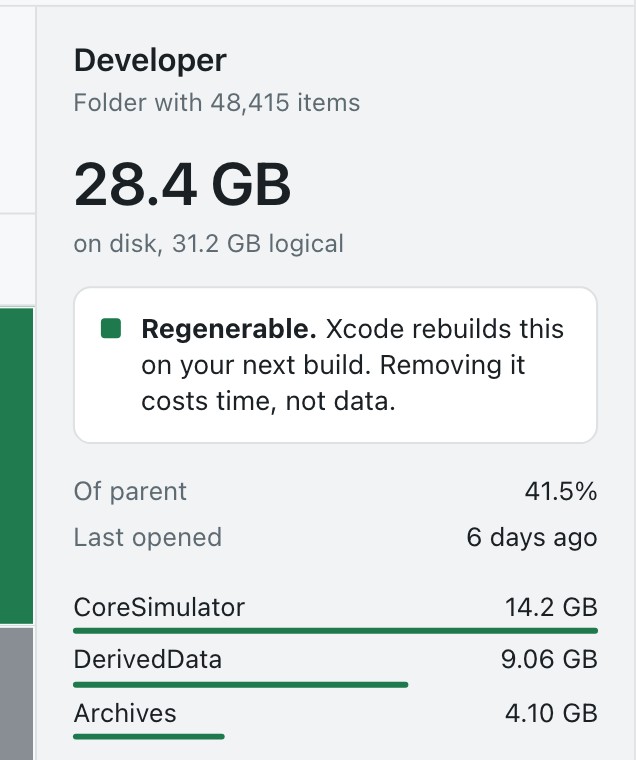
DiskAtlas scans the disk, shows every folder by size and labels what it is, for example Regenerable (an app rebuilds it), Refetchable (it downloads again), Project output, Yours or System. Nothing is selected for you, and nothing moves until you review the list, and then it goes to the Trash, not straight to deletion.
Kempt is the cleanup side: it groups safe-to-clear caches, idle developer projects, old downloads and the leftovers of apps you removed, and says why each item is listed. Only what you tick is cleared.